QR Codes 4 min read
Google Review QR Code: How to Make One and 15 Places That Get More Reviews
Get your Google review link, turn it into a QR code in two minutes, and put it where happy customers will actually scan it. Plus what to say and what not to do.
The short answer
Copy your review link from your Google Business Profile (Read reviews, then Get more reviews), paste it into a free QR code generator and download the code. Then put it where customers are happiest: on a review card handed over at the end of the job, at the register, on receipts and invoices. Ask every customer, and never offer a reward for a review.
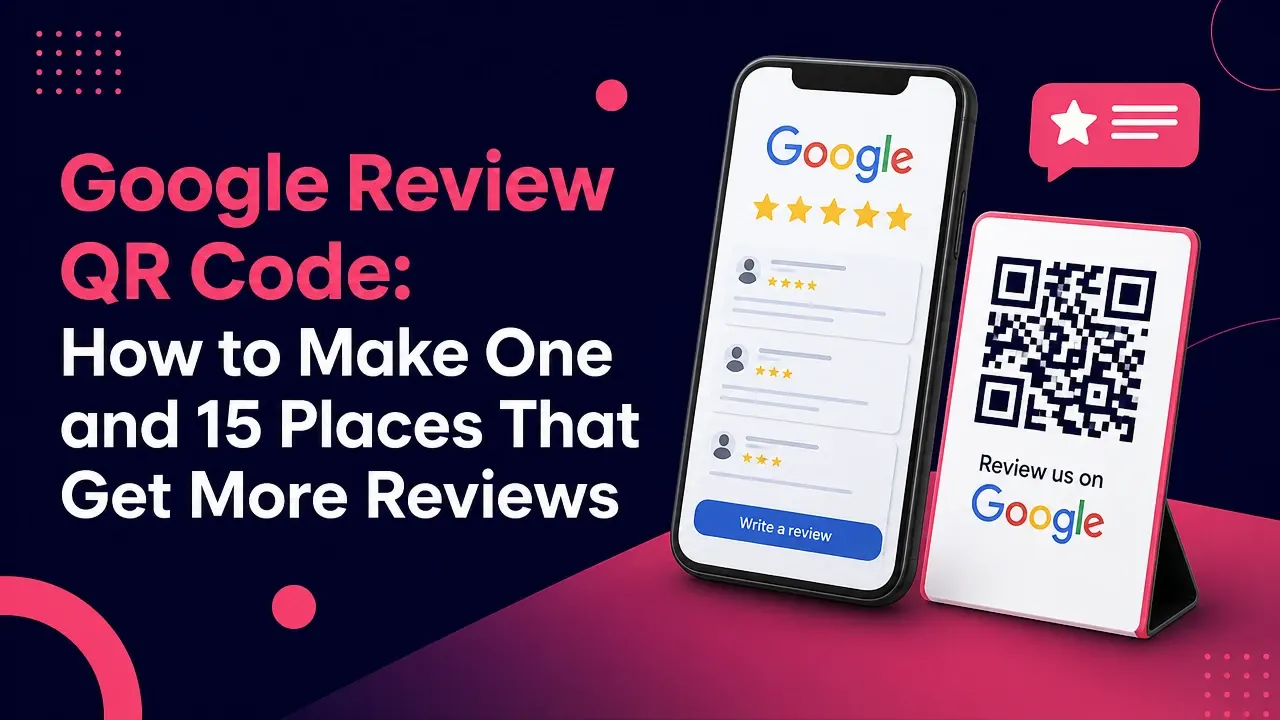
Most happy customers would leave you a review. They just don’t think of it, and by the time they’re home, the moment has passed. A Google review QR code fixes that: one scan opens your review form, right when the customer is happiest.
Here’s how to make one in two minutes, the best places to put it, and what to say when you hand it over.
4%
of consumers say they never read online business reviews
Source: BrightLocal, Local Consumer Review Survey, 2025
In other words, nearly everyone checks. Your reviews are often the first thing a new customer sees, before your website and before they call.
How to make a Google review QR code
Step 1: Get your review link
Google gives every business a direct review link. On a computer:
- Open your Google Business Profile.
- Choose Read reviews, then Get more reviews.
- Select Copy to copy your review link.
Google shows a QR code on the same screen (Google says its review QR codes can only be made in a computer browser, not on a phone), and you can save it by right-clicking it. That works, but you get a small image with no control over size or format.
Step 2: Turn it into a print-ready code
Open our free QR code generator, choose Google review, paste the link and download an SVG for print (it stays sharp at any size) or a large PNG for screens. It’s a static code, so it never expires and doesn’t depend on any service, including ours.
Step 3: Test it
Scan the code with an iPhone and an Android phone before you print anything. It should open your review form directly, not your profile.
15 places a review QR code gets scanned
The best spots share two things: the customer is happy right now, and they have a moment with their phone in hand.
At the end of the job
- A review card handed over in person. The strongest move there is. Finish the job, thank them, hand them a card: “If we did a good job, a review helps us a lot.”
- On the invoice or estimate. The customer is already reading it carefully.
- On the leave-behind folder or packet. Warranty info, care instructions, your card, and the review code on top.
- On a magnet or sticker on the equipment. HVAC units, water heaters, pool pumps: the place they’ll look when they need you again.
- On the thank-you postcard you mail a few days later. A second, friendly nudge, after they’ve lived with the work.
At the counter
- A tent card at the register. People wait while you ring them up. Give them something to do.
- On receipts. Google itself suggests this one.
- On the bag or package. Especially for takeout and retail.
- On the table or the menu. Restaurants: the check arrives, the phone comes out.
- On a sign by the exit. “Thanks for visiting! Scan to tell us how we did.”
In the follow-up
- In the thank-you email or text. Here the link works better than a code: one tap.
- On your appointment reminder card. Salons, dentists, auto shops: ask about the last visit when you book the next one.
- On your business card’s back. Every card you hand out becomes a review request.
Out in the community
- On your booth sign at events. Your existing customers stop by to say hi. Ask them.
- On yard signs at finished jobs. Neighbors see the sign; the homeowner sees the reminder. (Our yard sign ideas have more.)
What to say when you ask
A QR code works best with a few words from a real person. Keep it short and ask everyone the same way:
- In person: “Thanks for having us. If you have a minute, a Google review really helps a small business like ours. This card takes you right to it.”
- On the card: “How did we do? Scan to leave us a Google review. It takes about a minute.”
- In a text: “Thanks again for choosing us today! If you have a minute, here’s where you can leave a review: [link]”
The rules (short version)
Google and the FTC are both clear about a few things. Break them and you can lose reviews, or worse.
- Don’t offer anything for a review. Google’s policy prohibits incentives “such as payment, discounts, free goods” in exchange for reviews.
- Don’t only ask the happy ones. Google says merchants must not “selectively solicit positive reviews.” Sending unhappy customers somewhere else first (sometimes called review gating) falls under that.
- Don’t pressure people on the spot. Google says merchants shouldn’t require or pressure customers to leave a review while they’re still on the premises. A card they can scan later is the polite way to do it.
- Don’t set review quotas for staff. Google lists that as prohibited too.
- In the U.S., the FTC rule applies. Since October 2024, the FTC’s rule on reviews bans incentives conditioned on a review being positive or negative, along with fake reviews and review suppression.
The rules also protect you. BrightLocal found that 42% of consumers would think a review is fake if they believed it was part of a paid or incentivized deal. Honest reviews from real customers are the ones that work.
The bottom line
Make the code once, then put it everywhere a happy customer has a free moment: a card at the end of the job, the register, the receipt, the invoice, the thank-you text. Ask every customer the same friendly way, never trade anything for a review, and the reviews come in steadily on their own.
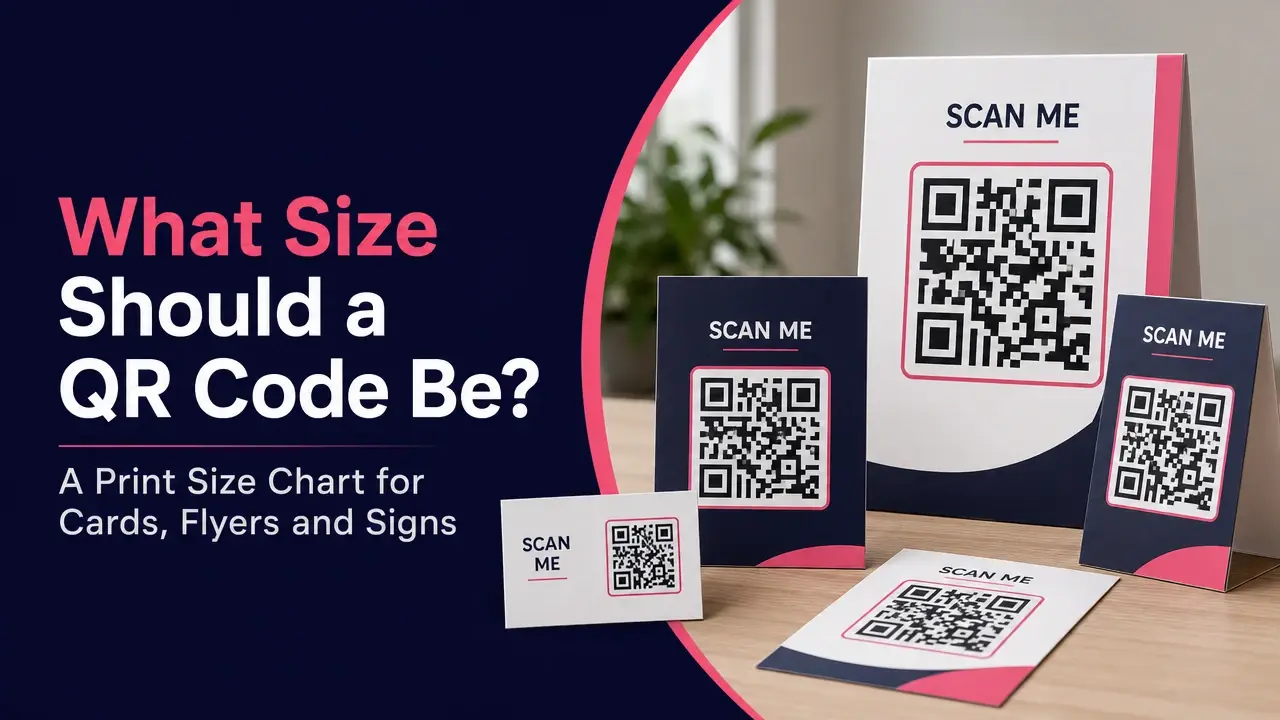
Printing review cards? Check our guide on what size a QR code should be so it scans the first time.
Questions people ask
How do I get my Google review link?
On a computer, open your Google Business Profile, choose Read reviews, then Get more reviews. Select Copy to copy your review link. Google can also show a QR code there, which you can save by right-clicking it. Google says review QR codes can only be made in a computer browser, not on a phone.
Is it OK to make my own Google review QR code?
Yes. A QR code is just your review link in a scannable form. Copy the link from your Business Profile, paste it into a QR code generator and download the code. A static code never expires, because the link is stored inside the pattern.
Can I give customers a discount for leaving a Google review?
No. Google's policy prohibits offering incentives such as payment, discounts or free goods in exchange for reviews. In the U.S., the FTC's rule on reviews also bans incentives that are conditioned on a review being positive or negative.
Can I only ask happy customers for a review?
No. Google's policy says businesses must not discourage negative reviews or selectively ask for positive ones. Ask every customer the same way. You can still time the ask well, such as right after a finished job.
Where should I put a Google review QR code?
Where customers are already happy and have their phone in hand: on a card handed over at the end of a job, at the register or checkout counter, on receipts and invoices, on the table or menu, and in the thank-you email or text.
What size should a review QR code be?
At least about 0.8 inches (2 cm) square on anything held in the hand, like a card or receipt, and bigger on signs people scan from a distance. Our QR code size guide has a full chart.
Sources
- Create a Google link or QR code to request reviews, Google Business Profile Help
- Tips to get more reviews, Google Business Profile Help
- Maps user contributed content policy: prohibited and restricted content, Google
- Federal Trade Commission Announces Final Rule Banning Fake Reviews and Testimonials (Aug. 14, 2024)
- Trade Regulation Rule on the Use of Consumer Reviews and Testimonials, Federal Register (Aug. 22, 2024)
- Local Consumer Review Survey 2025, BrightLocal